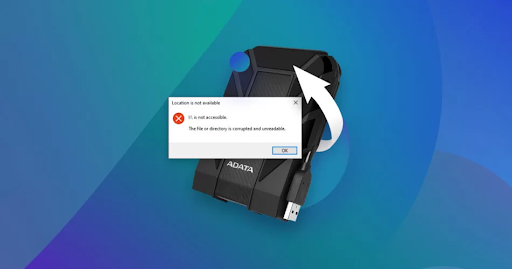
Nothing is more frustrating than plugging in your USB, external hard drive, or memory card and realizing that it is corrupted. Your files may disappear, Windows might ask you to format the drive, or you could see strange error messages. In such moments, panic is natural—but the good news is that there are effective ways to recover files from corrupted drive on Windows without immediately resorting to costly professional services.
This guide explains the common reasons behind drive corruption, symptoms you should look out for, and several practical recovery methods. With the right steps, you can often rescue your data and prevent further loss.
Why Do Drives Become Corrupted?
Understanding the causes of drive corruption is important before you begin recovery. Here are the most common reasons:
- Improper Ejection – Disconnecting a USB or external hard drive without safely removing it.
- Power Failures – Sudden power outages while data is being written to the drive.
- Malware or Viruses – Harmful programs can alter or damage the file system.
- Bad Sectors – Areas of the drive become unreadable due to wear or age.
- Physical Damage – Dropping or mishandling external drives.
- Software Errors – System crashes or installation issues that affect file structures.
Each of these can make your files inaccessible, but most do not mean your data is permanently lost.
Signs of a Corrupted Drive
Before starting recovery, confirm whether your drive is indeed corrupted. Common signs include:
- Windows asks you to format the drive before you can use it.
- Files and folders appear empty or are missing.
- The drive shows RAW format or zero storage capacity.
- Frequent error messages such as “The parameter is incorrect” or “Drive not accessible.”
If you encounter any of these symptoms, stop using the drive immediately. Adding new files can overwrite existing data, reducing the chance of recovery.
Methods to Recover Files from a Corrupted Drive in Windows
There are several ways to recover your data. Try these solutions step by step until you succeed.
1. Use Windows Error Checking Tool
Windows provides a built-in error checking feature that scans and repairs basic file system problems.
- Open File Explorer and right-click the corrupted drive.
- Select Properties → Tools.
- Under Error checking, click Check.
If the corruption is minor, Windows may repair the drive and restore access to your files.
2. Restore from Backup or File History
If you have File History, System Restore, or another backup enabled, restoring your files is the easiest option.
- Open Control Panel → File History.
- Select Restore your files with File History.
- Browse through available backups and restore the missing data.
This method works only if you had backup settings enabled before the drive became corrupted.
3. Try a Different USB Port or Computer
Sometimes the issue is not with the drive itself but with the port or system you’re using. Plug the drive into another USB port or try it on a different computer. If it works elsewhere, copy your files immediately.
4. Assign a New Drive Letter
Occasionally, Windows fails to recognize a drive because of a conflicting letter. Assigning a new one may solve the problem:
- Right-click the Start Menu and choose Disk Management.
- Find your drive, right-click, and select Change Drive Letter and Paths.
- Assign a new letter and click OK.
Once done, recheck the drive in File Explorer.
5. Use Reliable Data Recovery Software
If Windows tools don’t work, dedicated recovery software can help. These programs scan your corrupted drive and attempt to retrieve lost files. Popular options include:
- EaseUS Data Recovery Wizard
- Recuva
- Disk Drill
- Stellar Data Recover
Most of these tools are user-friendly: simply install them on a healthy drive, select the corrupted one, run a scan, preview recoverable files, and restore them to a safe location.
This is often the most effective way to recover files from corrupted drive when built-in Windows utilities fail.
6. Seek Professional Data Recovery Services
If your drive is physically damaged (clicking sounds, overheating, or not spinning at all), software recovery won’t work. In such cases, you may need to turn to professional recovery labs.
While this option can be expensive, it’s the most reliable method for saving critical or irreplaceable files. Professionals use advanced equipment in clean-room environments to safely extract data.
Preventing Drive Corruption in the Future
Recovering data is often stressful and time-consuming, so prevention should be your priority going forward. Here are a few simple habits that can save you from future headaches:
- Always eject drives safely before removing them.
- Keep your system updated with the latest patches and antivirus software.
- Use a surge protector or UPS to protect against sudden power loss.
- Avoid overfilling your drives—leave some free space for smooth operation.
- Back up important data regularly to an external hard drive or cloud storage.
By practicing these steps, you greatly reduce the risk of encountering corrupted drives again.
Conclusion
A corrupted drive doesn’t necessarily mean your files are gone forever. With the right tools and techniques, it is often possible to recover files from corrupted drive on Windows without professional help. Start with simple methods such as the Error Checking tool or restoring from backups, and if necessary, move on to recovery software or expert services.
The key is to act quickly and avoid writing new data to the drive until your recovery efforts are complete.
If you want to continue learning advanced data recovery methods, troubleshooting tips, and backup strategies, explore our collection of more data recovery tutorials. With the right knowledge, you can protect your files and ensure peace of mind even when unexpected issues arise.